How to make your first AI sticker pack
Start with a character, choose a look, and create a set of 24 expressions. This guide walks through generating, cutting, and downloading your stickers, with optional artwork for publishing on WeChat. No Photoshop required.
Want to add a wave, nod, or other motion to an existing picture? Use our AI GIF generator to turn a photo into an animated GIF with a short motion prompt.
The screenshots below show the Chinese interface. The English interface follows the same workflow; labels may differ.
1Choose a visual style
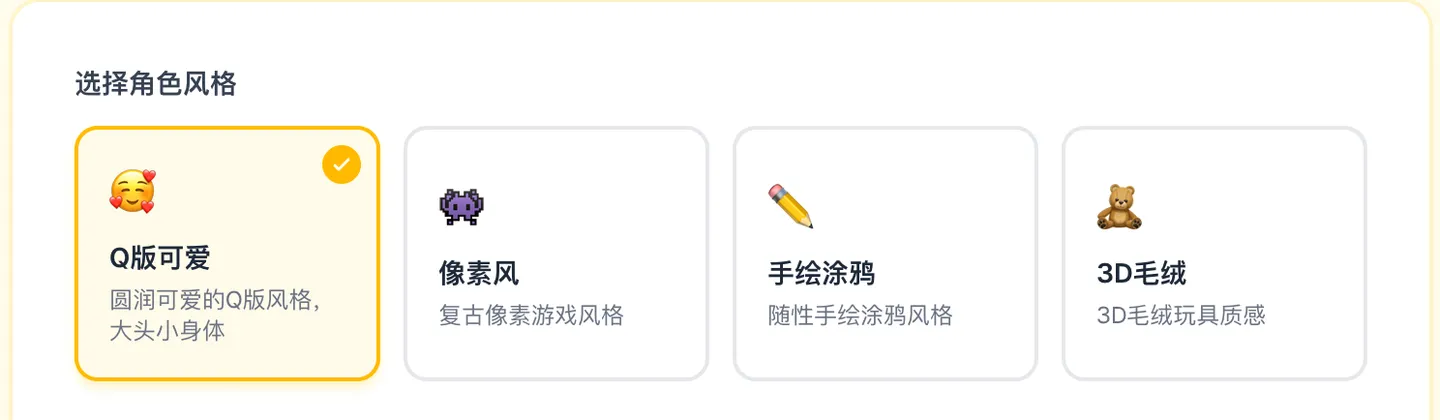
Pick from four styles: cute cartoon, pixel art, hand-drawn doodle, and plush 3D. Think about the character and the mood of the pack. Cute cartoon is a straightforward place to start.
2Choose up to three themes
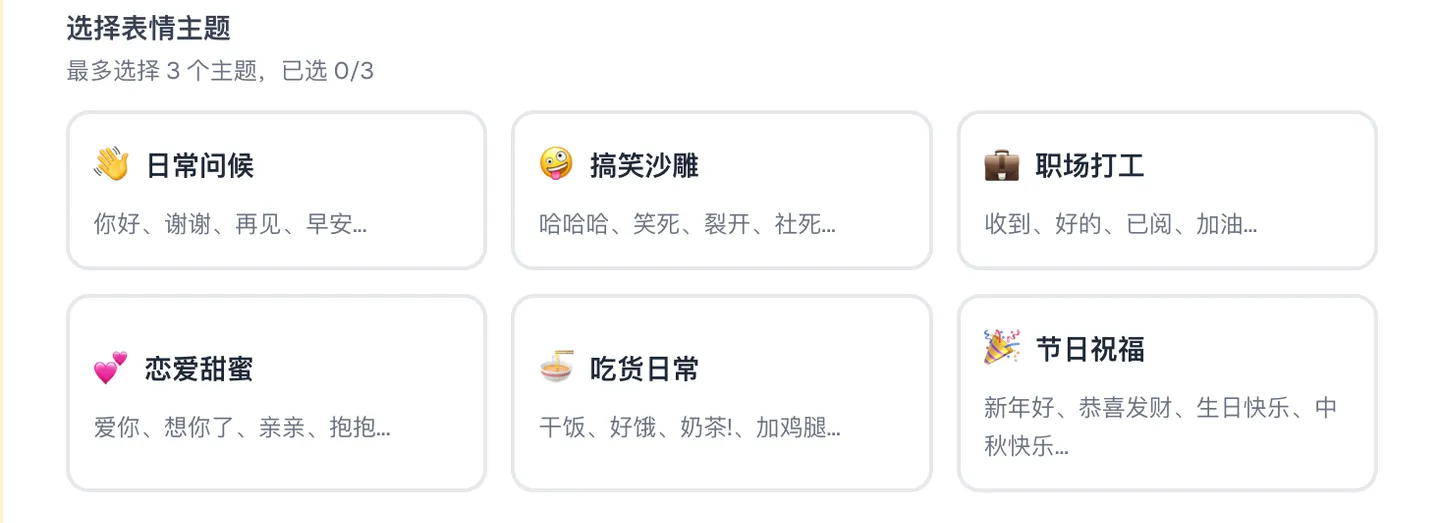
Combine themes such as everyday greetings, humor, office life, romance, food, and celebrations. AI uses your selection to plan expressions, actions, and captions across the pack.
3Add your own captions, if you like
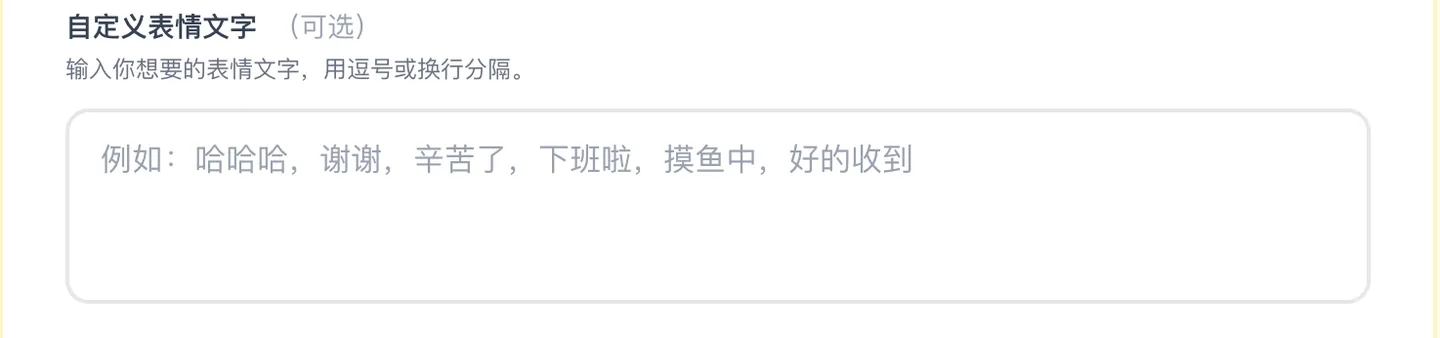
Enter phrases you want on the stickers—such as Hello, Thank you, or Let’s eat. You can supply up to 24 captions. If you enter fewer, AI fills out the pack based on your themes. Keep captions short and check the generated lettering before downloading.
4Give your character a starting point
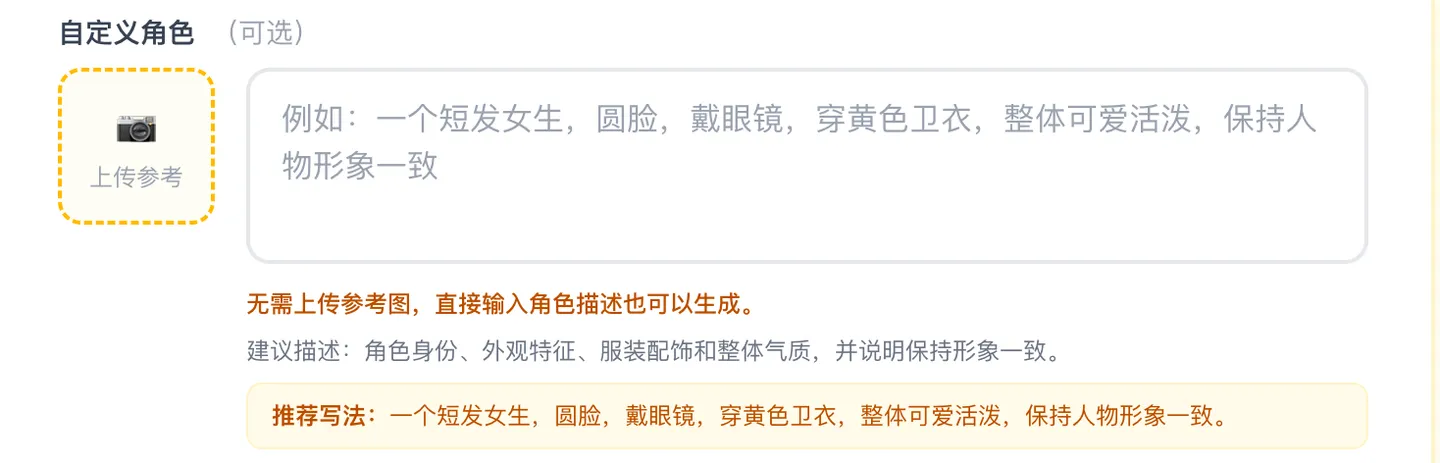
Upload a reference photo or illustration, or describe a character in words. Include the details that matter most: appearance, clothing, colors, and personality. A clear description helps the pack feel consistent; generated details may still need review.
5Generate your sticker sheet
Generation usually takes around 2–3 minutes. When the sheet is ready, the cutting page opens automatically. If you leave or refresh the page, use History to reopen a saved sticker-sheet generation.
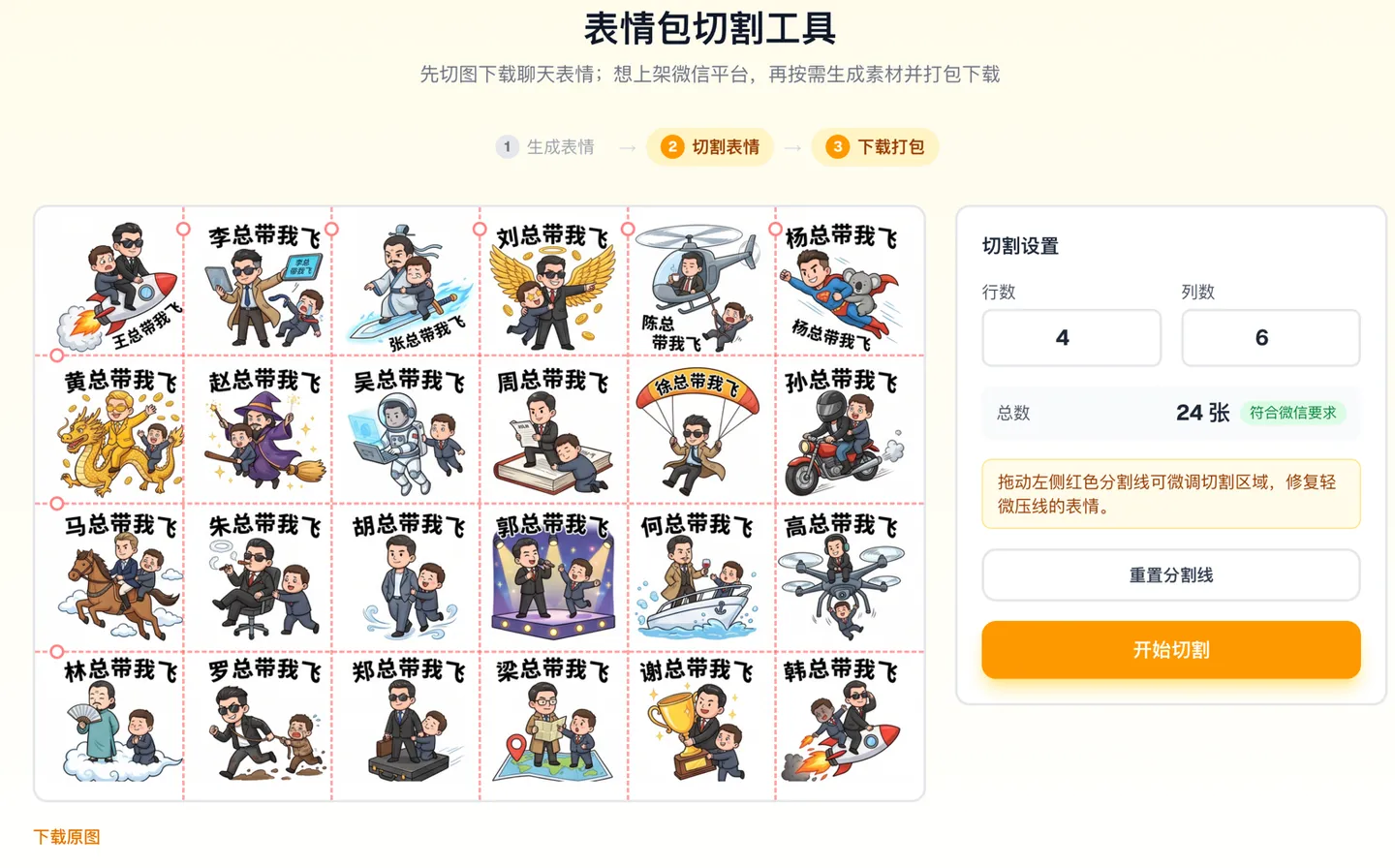
6Review and cut the stickers
The cutting tool separates the sheet into 24 individual 240×240 images. Drag the cutting lines where needed so they do not cross the artwork. Remove any stickers with errors or unwanted text before downloading.
7Create optional WeChat store artwork
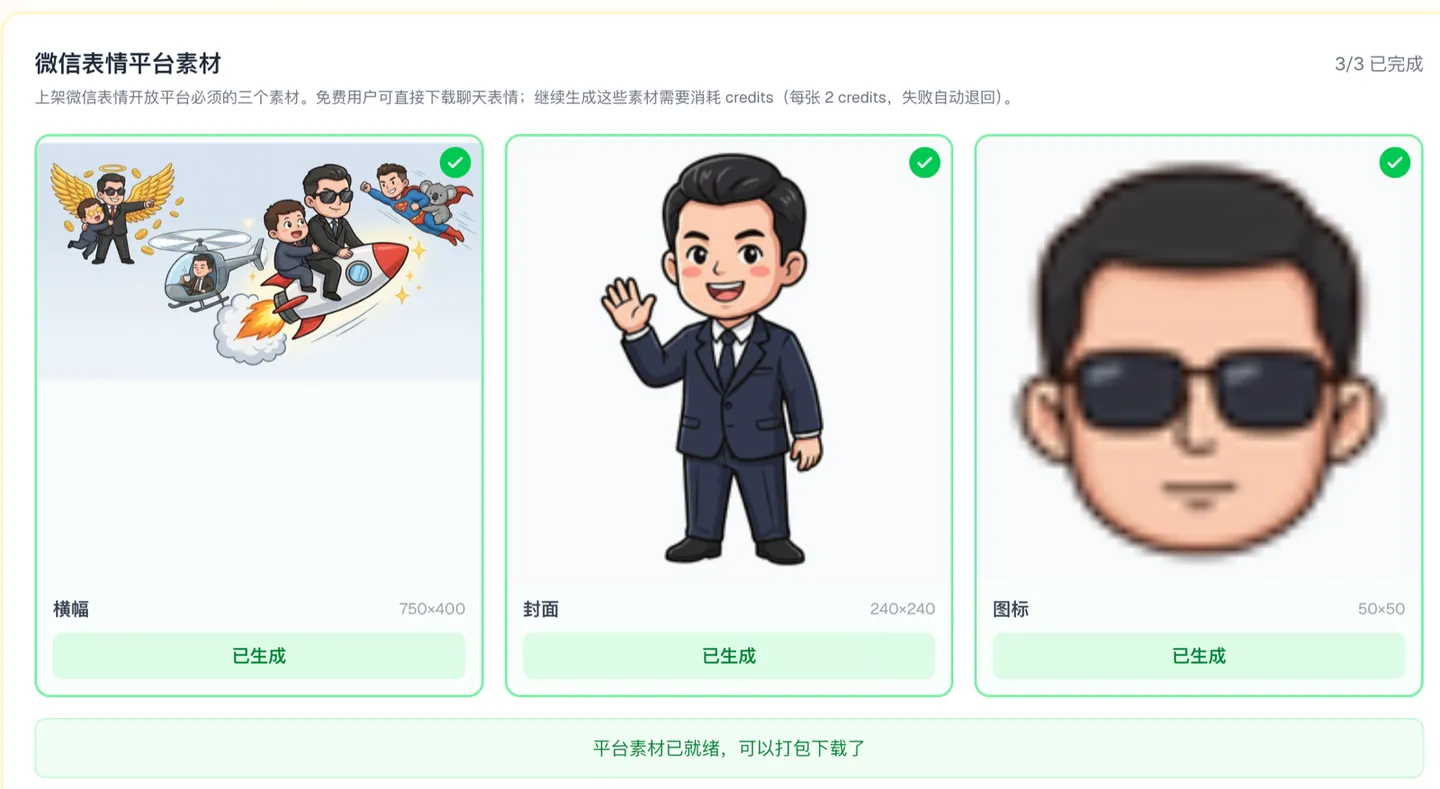
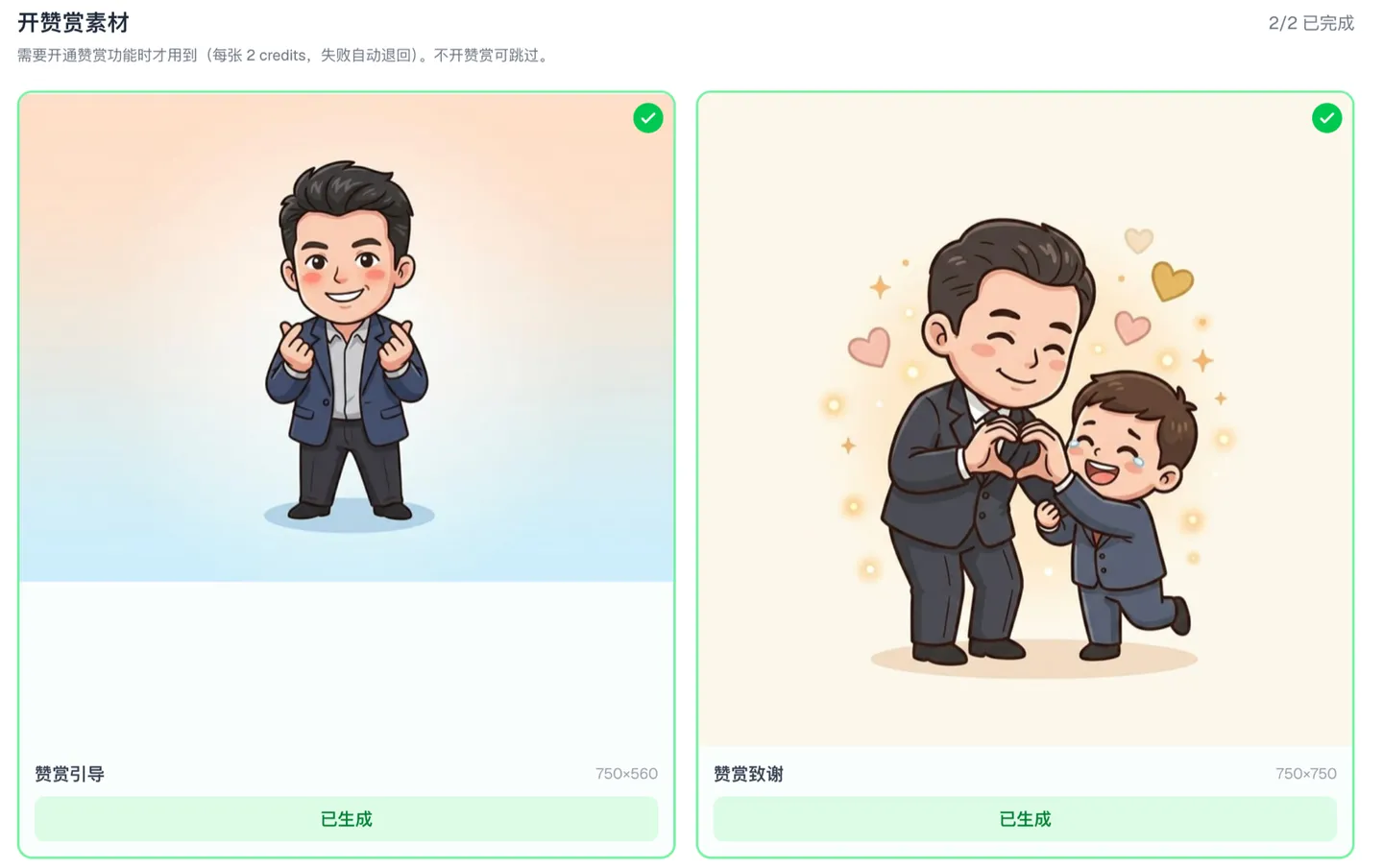
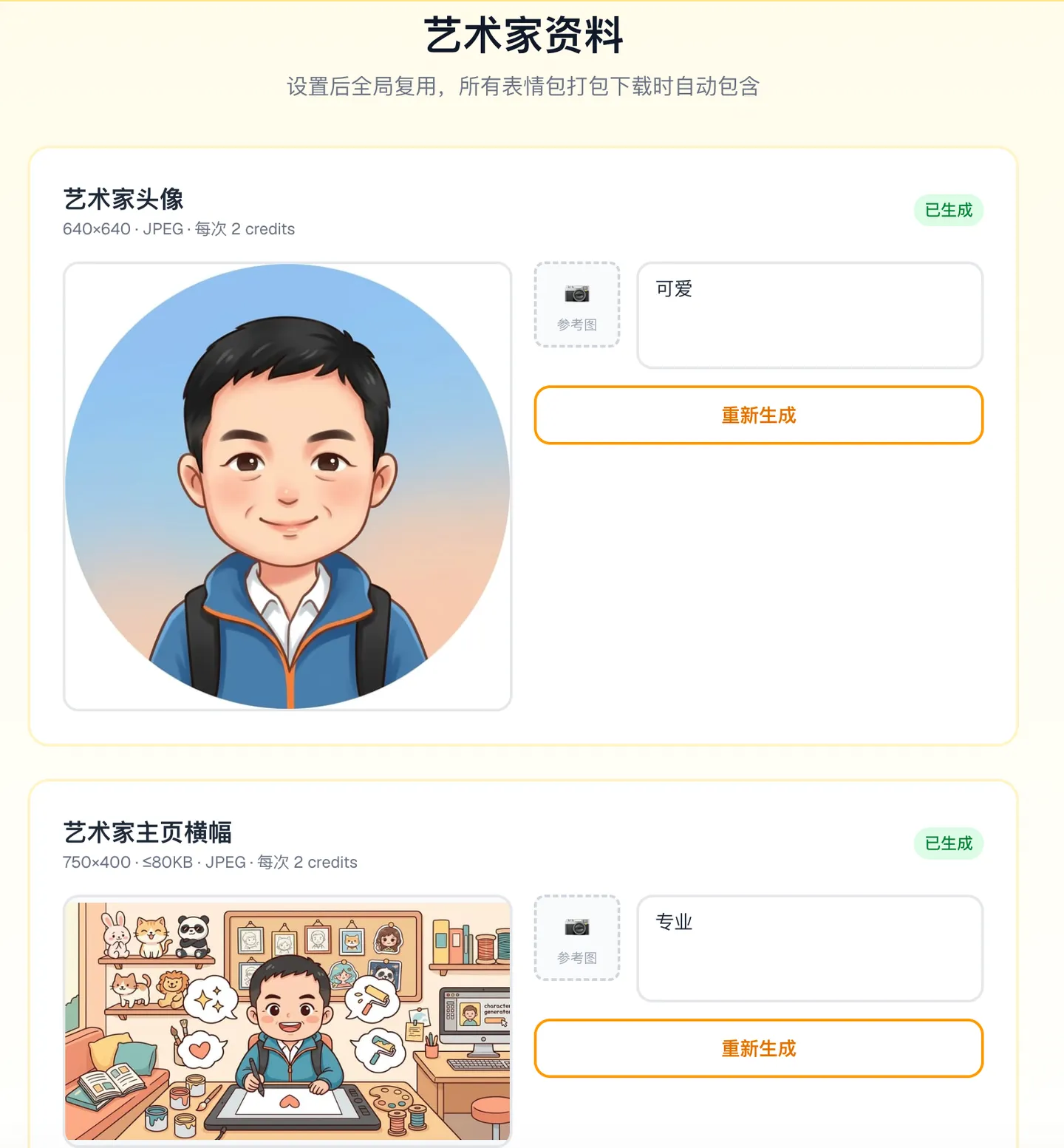
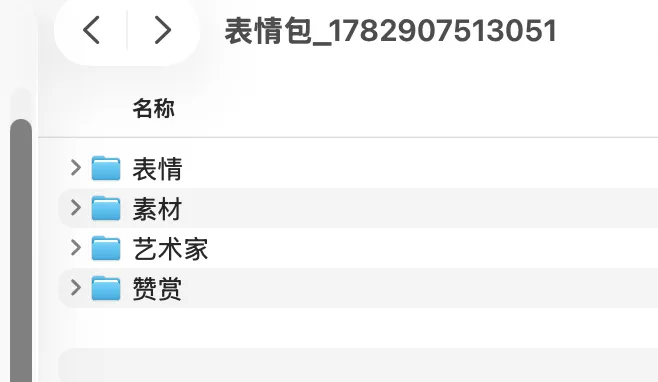
For personal use, you can download the cut stickers and stop here. Publishing on the WeChat Sticker Store also requires a banner, cover, and chat icon, generated using additional credits. If you plan to enable WeChat’s appreciation feature, prepare the support and thank-you images and your artist artwork too. Open the artist profile page to create an avatar and profile banner.
8Download your finished pack
Download the stickers for your own use, or download a bundle after generating the store artwork you need. For WeChat publishing, review the files and follow the publishing guide to submit them through the creator platform.
Next: publish on the WeChat Sticker Store
Once your files are ready, the publishing guide explains the creator-platform registration and submission process, along with the information and artwork to prepare.
Read the WeChat publishing guide →Make your first pack
Sign up for 4 welcome credits—enough to generate, cut, and download your first sticker sheet.
Try the sticker maker