🍳Sticker Kitchen
AI GIF generator from images

Turn your photo into
an animated GIF

Animate a single photo with AI. Describe a movement to bring your portrait, pet or character to life. No video or photo sequence needed.
From photo to downloadable GIF, all in one place. No Photoshop needed.

  • Animate a single image
  • Optional transparent background
  • Download in multiple sizes

Sign in to generate · 2 credits per generation · No extra charge to download View pricing

See 10 before-and-after examples
01

Upload a photo or image

Checking your account and any unfinished GIFs…

Background
02

Describe the motion

Tell us who moves, how they move and the mood

0 / 600
0 / 60

Your words become part of the artwork, with placement chosen to suit the image.

No extra credits for downloads or export changes

Sign-in required View pricing Failures and saving your work

Want a whole set of reactions?Create a sticker pack

Your animated GIF

Your preview will appear here
Animation preview16 frames · Loops forever

Your next great reaction starts here

Add a still image and turn a little movement into a big mood.

  1. 1Prepare image
  2. 2Plan motion
  3. 3Generate frames
  4. 4Assemble GIF
  5. 5Save GIF
One still image. AI-made motion.

See a photo come to life

Each pair shows one still image brought to life with AI: original above, GIF below. The examples scroll slowly—swipe or use the arrows to explore.

  • Pet photo01
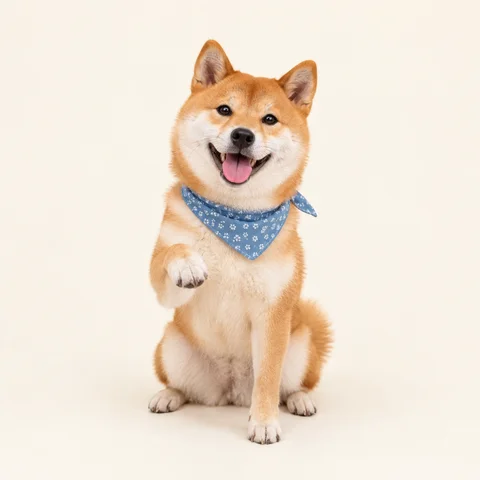
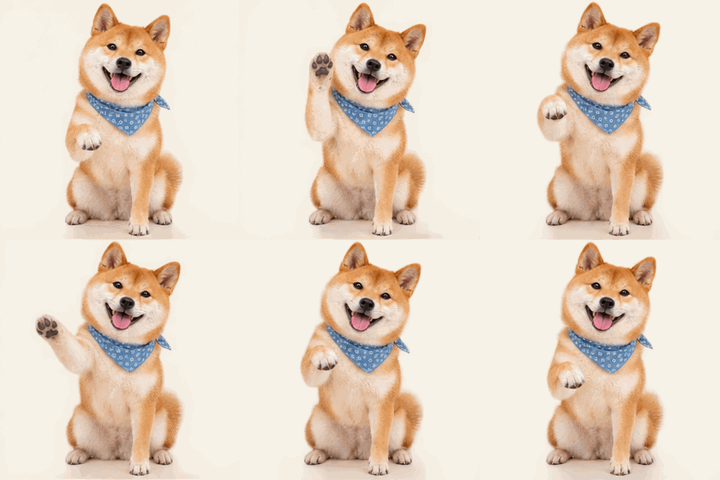
    A seated Shiba Inu against an ivory background, original still image before animationA single still image
    GIF paused

    A little hello

    Stay seated, lift one front paw and give a gentle wave without moving the body.

  • Pet photo02
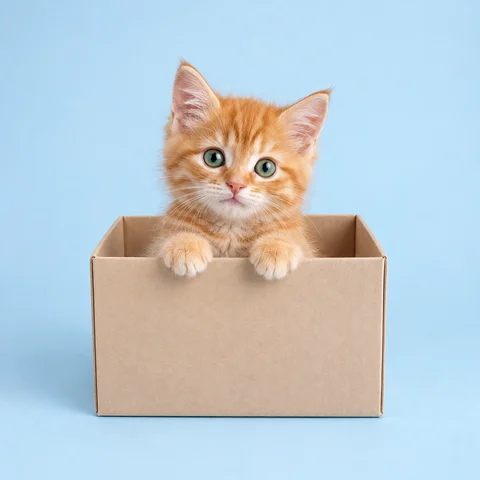
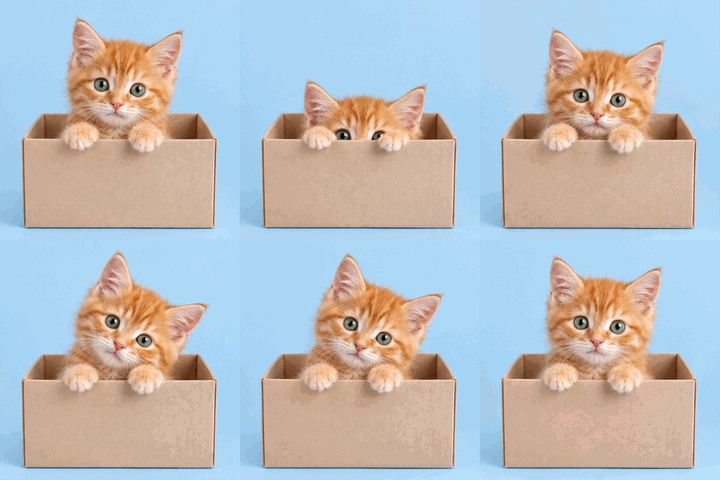
    An orange cat peeking out of a cardboard box against a pale blue background, original still image before animationA single still image
    GIF paused

    Just checking in

    Slowly peek out of the cardboard box, blink once, then duck back down.

  • Cartoon03
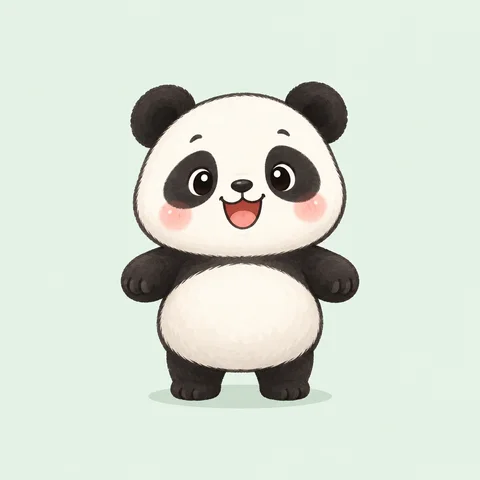
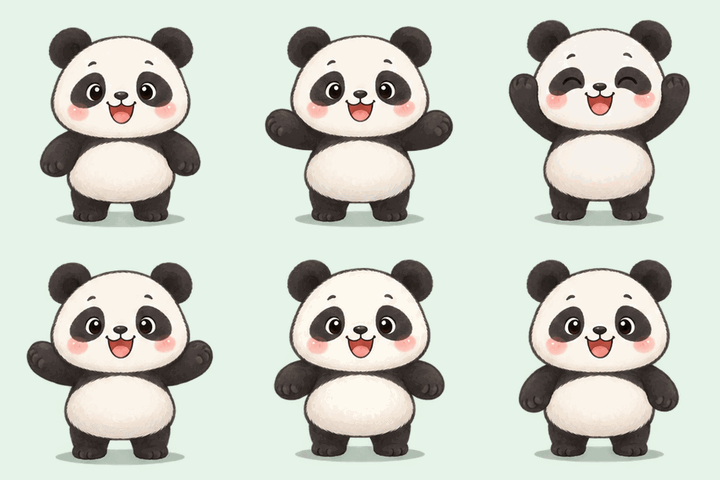
    An original round panda illustration against a mint background, original still image before animationA single still image
    GIF paused

    A big little cheer

    Raise both paws to cheer, bob them up and down and smile with delight.

  • Portrait photo04
    A fictional adult woman with short hair wearing a light blue shirt, original still image before animationA single still image
    GIF paused

    Wave hello

    Smile at the camera and give a gentle wave. Keep the camera and body still.

  • Cartoon05
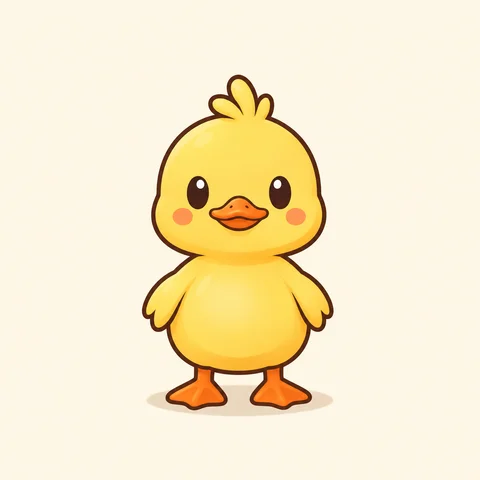
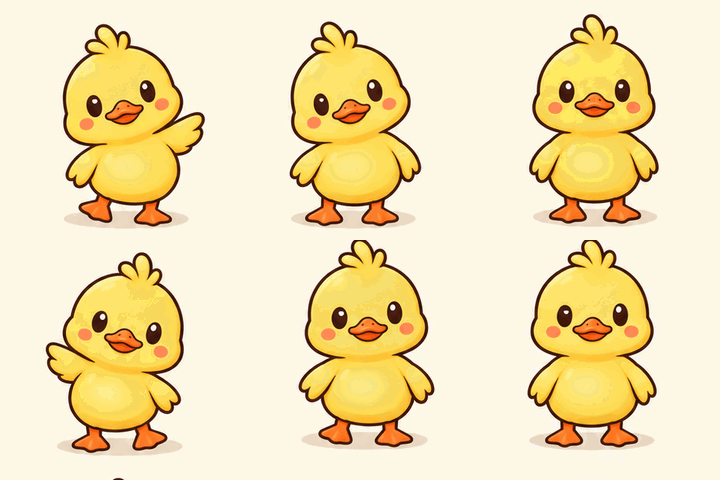
    An original yellow duck illustration against an ivory background, original still image before animationA single still image
    GIF paused

    The happy duck dance

    Stay in place and wiggle from side to side, moving both little wings to the beat.

  • 3D character06
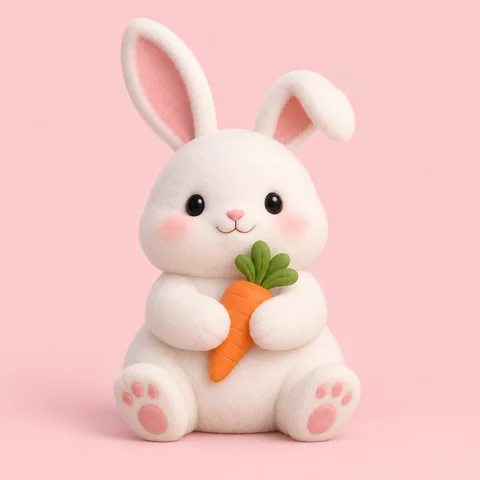
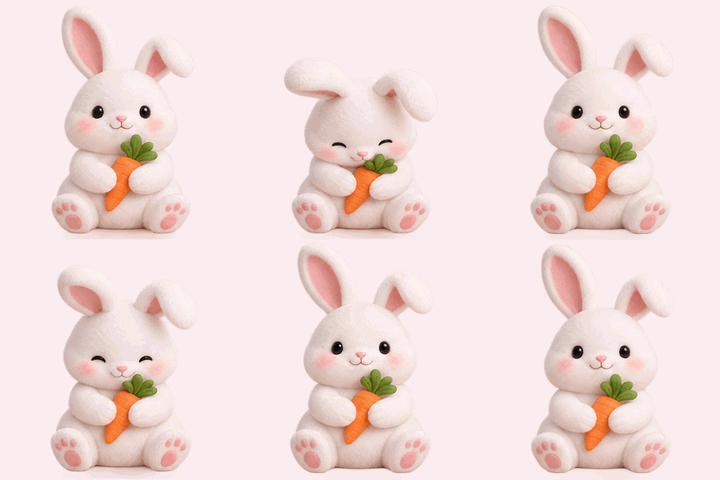
    A white 3D rabbit holding a carrot against a pale pink background, original still image before animationA single still image
    GIF paused

    That’s a yes

    Hold the carrot and nod gently, letting the ears sway a little with the movement.

  • 3D character07
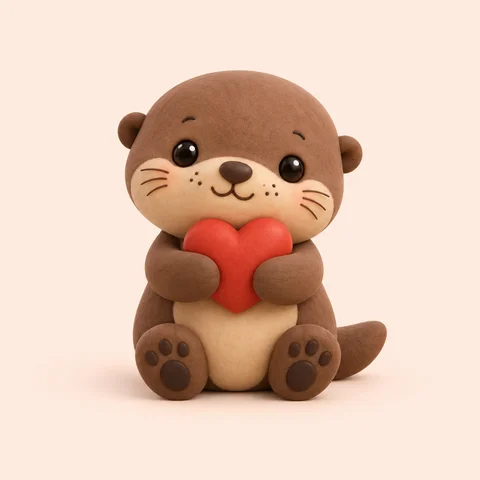
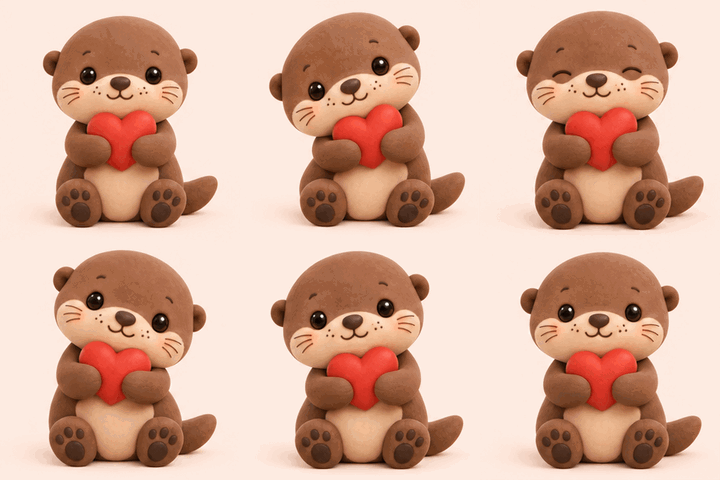
    A brown 3D otter hugging a red heart against a peach background, original still image before animationA single still image
    GIF paused

    Sending you love

    Hug the red heart and sway gently from side to side with a warm expression.

  • Illustration08
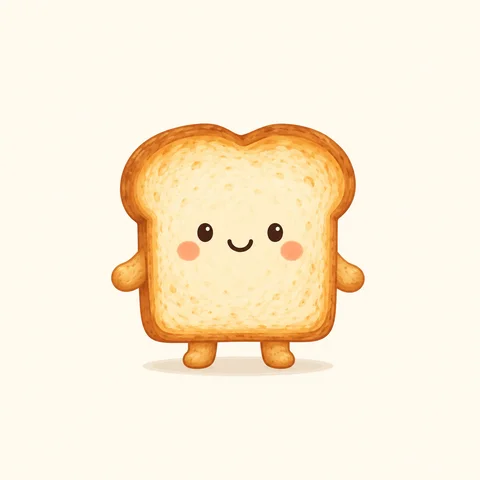
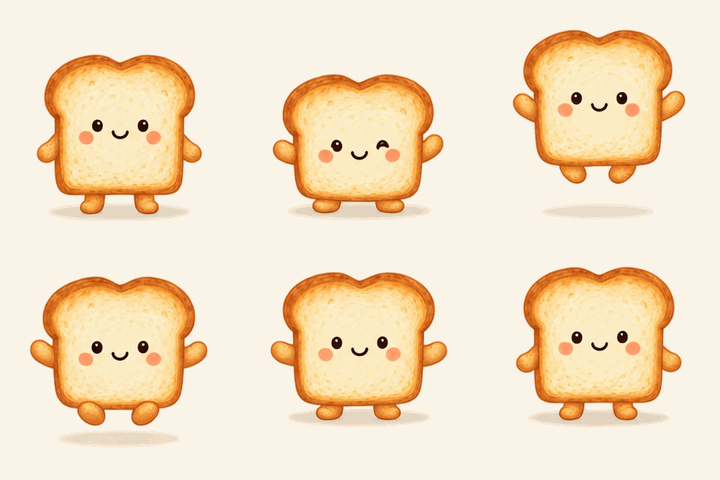
    An original smiling toast character against a warm ivory background, original still image before animationA single still image
    GIF paused

    Toast of pure joy

    Crouch slightly, bounce up with joy, then land and settle back into the starting pose.

  • Everyday object09
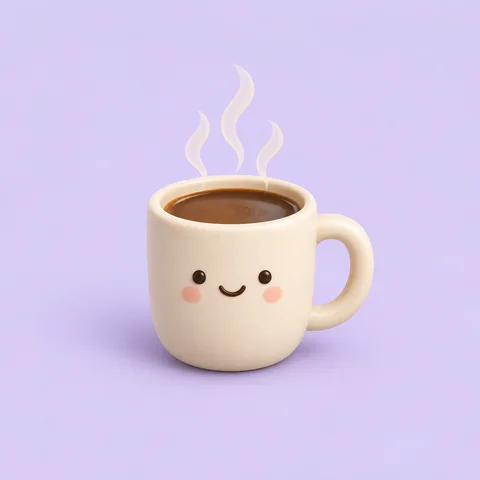
    A smiling cream-colored 3D coffee cup against a lavender background, original still image before animationA single still image
    GIF paused

    A warm little moment

    Keep the coffee cup still while the steam rises slowly and drifts above the rim.

  • Hand-drawn plant10
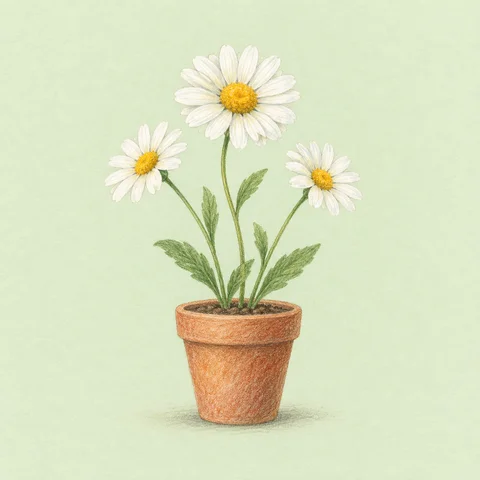
    Colored-pencil daisies in a terracotta pot against a pale green background, original still image before animationA single still image
    GIF paused

    A breeze through the daisies

    Keep the pot still while the daisy flowers, stems and leaves sway gently in the breeze.

01 / From photo to GIF

How to make a GIF from a single photo

All you need is one reference image and an idea. This AI photo animator creates the movement, then assembles and saves your GIF in the background. Upload, preview and download in one place, with no Photoshop needed.

  1. Upload a photo or image

    Choose a clear portrait, pet photo or illustration in PNG, JPG or still WebP format, up to 10 MB. Your image is optimized automatically—no need to crop it square first.

  2. Describe the motion and choose a background

    Start with one small movement, such as “Keep the cat seated and gently tilt its head to one side. Keep its body and the background still.” Then choose the original scene or a transparent background.

  3. Let AI animate your image

    Sign in and generate. AI uses your image and description to create the movement, with progress shown in the workspace. Each generation uses 2 credits.

  4. Preview and download your GIF

    Preview and download as soon as your GIF is ready, while it saves to your account in the background. Size, speed and color changes cost no extra credits. Once saved, your 512×512 original is available in your GIF history.

02 / More than portraits

Animate a photo, a pet or a favorite character

Make personalized reaction GIFs and memes from images that feel like you. Choose a clear subject and give it a movement that suits the picture.

Portraits

Make your own reaction GIF

Start with a blink, a gentle nod or a smile in a selfie or everyday photo. Choose one movement, keep the face clear, and describe what should stay still. For group photos, specify which person to animate.

Photo tip: keep the subject large and moving body parts visible.

Pet photos

Give your cat or dog a starring role

A curious head tilt, an eager wag or a hopeful look at dinner: start with one simple movement your pet could naturally make to help preserve its appearance.

Photo tip: avoid blur and objects covering the subject.

Illustrations and characters

Bring a still character to life

Create animated stickers from a photo or illustration of your character. Build on its existing pose and mood with a gentle sway or a small change in expression. Mention any style, background or existing text you want to keep.

Image tip: clear outlines work well; avoid tiny text.

Objects and scenes

Animate one detail in the picture

Let steam rise slowly from a cup or flowers sway in a light breeze. Focus on one moving subject, keep the motion gentle, and specify which objects and parts of the background should stay still.

Image tip: choose a subject that stands out from its background.

03 / Give a feeling some movement

What should I write in the motion description?

Explain who moves, how they move and what feeling you want to show. Start with one simple, gentle movement and specify what should stay still. Use these prompts as a starting point; results vary with the image and motion.

All smiles

Portrait or cartoon character
Keep the original pose and gradually form a happy smile. Keep the head, hands and background still.

Is it dinner yet?

Cat or dog photo
Stay seated with an expectant look and gently tilt the head to one side. Keep the body and background still.

A gentle breeze

Flowers or a potted plant
Keep the pot in place while the flowers, stems and leaves sway slowly in a light breeze. Keep the background still.

Write naturally. For a character that’s already posed, try “Keep the original pose and gently shake the shoulders.” Ask for “subtle movement” when you want a softer result, and mention any background or text you want to keep still.

04 / Set the scene

A transparent sticker or a moment from your photo?

Choose a background before generating to suit how you’ll use the GIF. Images with a distinct subject are usually easier to animate. Zoom in afterward to check complex edges and small details.

Transparent background: focus on the subject

Remove the original setting to put your person, pet or object in the spotlight. Choose “Transparent” before generating. At export, you can keep the transparency or fill transparent areas with white.

Original background: keep the scene alive

Keep the surroundings in a travel photo, an everyday moment or an interesting scene. Say which person, object or part of the scene should move, and AI will use your image as its reference.

05 / Ready for the chat

Download your GIF and share it on WeChat

Preview the motion, then choose an export size. Your result is a square, looping GIF. Adjust its size, speed or color palette without paying for another generation.

GIF export sizes and suggested uses
SizeBest forWhat to check
240 × 240Chat reactions and compact filesMake sure the subject is easy to see. Fewer colors can help reduce the file size.
320 × 320 / 480 × 480Keeping more detailLarger dimensions usually mean a larger file. Check the size before downloading.
512 × 512A larger copy for later useThe 512px original saves automatically to your account. Download smaller sizes whenever you need them.
Save your result

Download the GIF file to keep it moving

Choose “Download GIF” in the results panel, then find it in your browser’s downloads, Files app or photo library. A screenshot captures only one frame, and converting to JPG removes the animation.

WeChat chats

Add it to WeChat and check playback

Save the GIF to your phone’s photo library. In WeChat’s sticker settings, find your custom stickers or individual stickers and use “+” to add the file. Menu names vary by version. Check that it plays correctly after adding it.

Troubleshooting

File too large? Adjust the export

Try 240×240 pixels and a smaller color palette, then export again. If the GIF stops moving after you share it, check that it hasn’t been converted to a still image. Once it’s saved to your account, you can download it again from your GIF history.

WeChat lets you add custom stickers from your photo library or by pressing and holding a sticker in a chat. See WeChat’s official guide to adding stickers. If its built-in browser can’t export your GIF, start in your phone’s regular browser instead.

Want to publish in the WeChat Sticker Store? Export at 240×240, then check the WeChat sticker specifications for file sizes, supporting artwork and content requirements. Follow our guide to publishing a WeChat sticker pack.

06 / Clear, simple pricing

How many credits does one GIF use?

Each AI generation uses 2 credits from the same balance as your static sticker packs. Downloads and export changes cost no extra credits.

Starter · 10 credits

¥6.9 / pack (CNY)

Create 5 animated GIFs

About CNY ¥1.38 per GIF when used only for GIF generation.

Creator · 50 credits

¥29.9 / pack (CNY)

Create 25 animated GIFs

About CNY ¥1.20 per GIF when used only for GIF generation.

Studio · 100 credits

¥49.9 / pack (CNY)

Create 50 animated GIFs

About CNY ¥1.00 per GIF when used only for GIF generation.

These totals assume you use all the credits for GIFs. Each generation creates one GIF, and generating another version uses credits again. Use your existing balance or add credits from your account after signing in.

07 / Before you start

AI GIF generator FAQs

Formats, pricing, failed generations and saving your work—here’s what to know.

How do I make a GIF from a photo?

Upload a single still image and describe how you want it to move. AI creates the motion and turns it into an animated GIF. This tool animates the subject in your image; it doesn’t make a slideshow from multiple uploaded photos. No video or photo sequence is needed.

Which image formats can I upload? Do I need to crop or compress them?

Upload a PNG, JPG or still WebP image up to 10 MB. Your browser optimizes it and compresses it to WebP while keeping its proportions before sending it to AI. The final GIF is square. Video, animated GIF, animated WebP and APNG uploads aren’t supported.

Is the AI GIF maker free? Do I need an account?

You need to sign in, and each generation uses 2 credits. The entry credit pack costs CNY 6.9 for 10 credits—enough for 5 GIF generations if used only for GIFs. Downloads and export changes cost no extra credits. Generating a new result uses credits again.

How can I make a still image move without knowing animation prompts?

Use everyday language and focus on one movement. For example: “Keep the cat seated and gently tilt its head to one side. Keep its body and the background still.” Start with small, slow movements rather than combining a jump, a turn and a wave. For an existing sticker, build on its pose and mood, and mention anything you want to keep still, including text.

Can I keep the photo’s background or make a transparent GIF?

You can choose either before generating. A transparent background puts the focus on the subject; keeping the original scene works well for travel and everyday photos. Changing this option afterward applies to your next generation—it doesn’t edit the existing scene. Transparency depends on the generated result.

Does the motion have to return to its starting pose?

No. A wave or a sway can repeat naturally, while running away or leaving the frame can simply end. The exported GIF loops, but the motion doesn’t have to reverse or return to the first pose. The transition on replay depends on its opening and closing frames.

Can I use my GIF as a WeChat sticker?

You can download the GIF for use in chats. Start with 240×240 pixels and check its clarity and file size. Publishing a pack in the WeChat Sticker Store also requires the platform’s current file specifications, supporting artwork and content review. Downloading one GIF does not publish a sticker pack.

Can I change the size later? Are my GIFs saved automatically?

Download your GIF at 240, 320, 480 or 512 pixels, or adjust its speed and color palette before exporting again. You can preview and download it as soon as it’s assembled while we save a 512×512 original to your account. Once saved, it appears in your GIF history. Export changes cost no extra credits and don’t replace the original. If saving is temporarily interrupted, we retry in the background and keep your current preview available.

How long does it take, and can I close the page while I wait?

Timing depends on the service queue, the image and your connection. Once your submission is confirmed, you can refresh or close the page. Generation, GIF assembly and saving continue in the background. Sign in to the same account and open your GIF history to check progress or download the saved result. There’s no need to submit another generation.

Are credits refunded if generation fails or I don’t like the result?

If the service confirms a failure or cancellation, or returns an image that cannot be processed, it will attempt to return the generation credits. Check the refund message and your balance for confirmation. If the result is uncertain, keep checking the task or contact support. A temporary download failure can be retried. Generating another version because you don’t like a successful result uses credits again.

Can I make GIFs on my phone? What if downloading doesn’t work in WeChat?

Yes. Use a modern browser on your phone, such as Chrome, Edge or Safari. If downloads don’t work in WeChat’s built-in browser, open this site in your phone’s regular browser and sign in to the same account. Check your GIF history and download the result once it’s saved. Images and descriptions you haven’t submitted won’t transfer between browsers.

What happens to my uploaded photo?

Your browser compresses the image first. When you generate, your reference image and motion description are sent to Replicate, which has its own data-retention policy. We save the finished 512×512 GIF and its motion description to your account in private storage. We don't put your reference photo or the intermediate sprite sheet in our object storage. Once saving is confirmed, you can view and download the GIF from History. Only use images you have permission to process.
Your next reaction GIF starts with your photo

Choose an image, describe the mood, and turn it into a response that’s all yours.

Upload a photo and make a GIF

Want a whole sticker pack?

Use the AI sticker maker to create a complete static sticker pack and the artwork you need for publishing. New here? Read the Sticker Kitchen getting-started guide for the full workflow.