How to make a picture move: 5 ways to turn a still image into a GIF
The short answer
The fastest way to make a picture move is AI image-to-video: upload one photo or illustration, describe the motion in a sentence (for example, “stretch, then let out a big yawn”), and an AI video model uses your picture as the first frame of a clip about 4 seconds long, which is then turned into a looping GIF. It takes about a minute. If you already have several frames, combine them into a frame-by-frame GIF; if you have a video, trim a few seconds of it into a GIF. Below are all five methods compared, with six real results.
What does a picture look like once it moves?
All six were made with Sticker Kitchen’s AI photo-to-GIF tool. The original is on the left, the GIF on the right, and the motion prompt underneath, ready to copy (translated; we wrote ours in Chinese). Each used the Basic model: about a minute and 2 credits. The originals are AI-generated, fictional subjects.

Pet photo: a cat’s big stretch
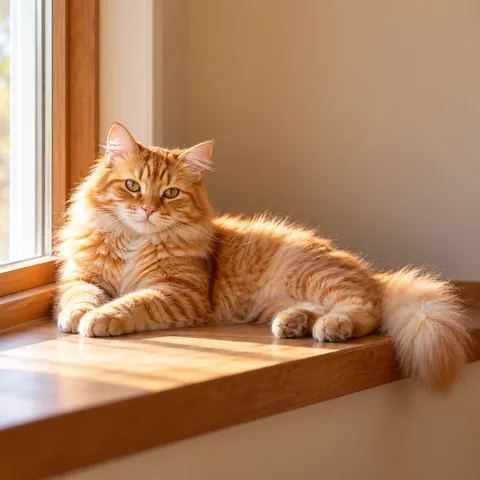

Motion prompt: Slowly stretch with the front paws reaching forward, then open wide for a big yawn with eyes squinting, and settle back into the original pose. Keep the camera still.
Dog photo: a happy corgi spin
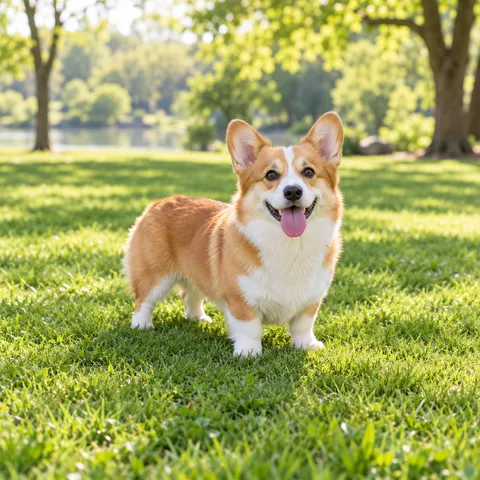

Motion prompt: Wag the tail happily, spin around once in place, then sit facing the camera with the tongue out, panting. Keep the camera still.
Old photo: a vintage portrait smiles
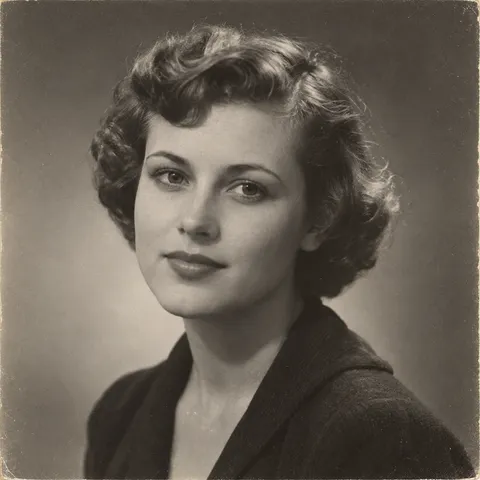

Motion prompt: Give a gentle smile, blink once and tilt the head slightly to one side, keeping the black-and-white film grain. Keep the camera still.
Landscape: a watercolor lake
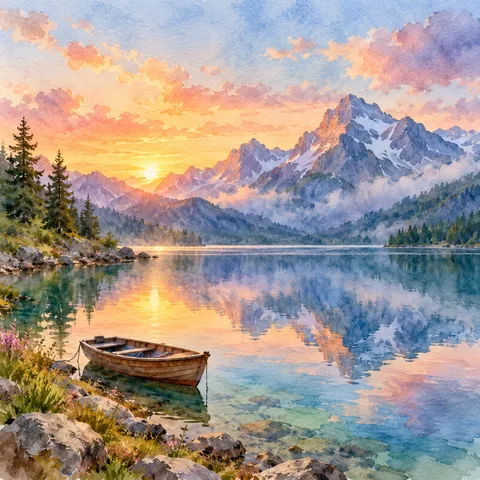

Motion prompt: Small sparkles ripple across the lake, the clouds drift slowly and the boat rocks gently; the mountains and trees stay still, in the same watercolor style. Keep the camera still.
Illustration: a chibi finger heart


Motion prompt: Keep the finger-heart pose and sway happily from side to side, blink once, let the hair bun bounce and the little hearts twinkle. Keep the camera still.
Product photo: bubble tea
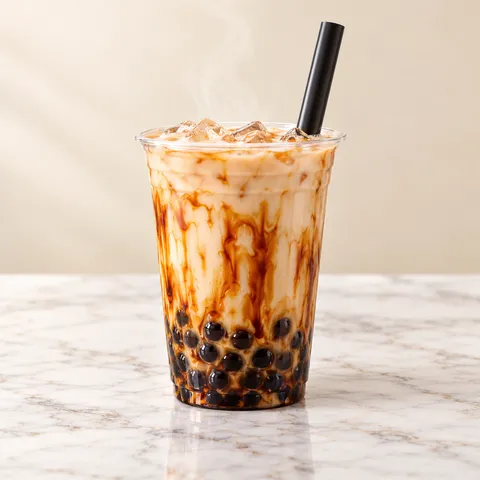

Motion prompt: The cup stays still while the tea surface ripples, the pearls sink slowly, the ice drifts and the brown-sugar streaks run down the sides. Keep the camera still.
Which of the 5 methods should you use?
Start with what you have: one picture, use AI; several pictures, make a frame-by-frame animation; a video or Live Photo, trim and convert it.
| Method | What you need | Best for | Time | Cost |
|---|---|---|---|---|
| AI image-to-video | 1 picture + a motion prompt | A single photo or illustration that should do something new | About 1–2 min | 2–4 credits per GIF |
| Frame-by-frame GIF | 2+ pictures in order | Hand-drawn frames, expression swaps, photo slideshows | 1–3 min | Free |
| Video to GIF | A video clip | You already filmed the motion | 1–2 min | Free |
| Live Photo to GIF | An iPhone Live Photo | The moment was captured when you took the photo | 1–2 min | Free |
| Partial motion | 1 picture | Only water, clouds, hair or steam should move | About 1–2 min | AI, per GIF |
Method 1: Animate a photo with AI (image-to-video)
Best when you have one photo or illustration and want the subject to do something it isn’t doing in the picture.
- Open the photo-to-GIF tool and upload a picture with a clear subject (PNG, JPG or still WebP, up to 10 MB).
- Describe the motion in one sentence: who moves, what they do, how big the movement is, and whether the camera stays still.
- Optionally add a caption or a transparent background, choose Basic or Advanced, then generate.
- Preview after a minute or two and download a 240 or 512 px GIF, or the MP4.
Method 2: Combine several pictures into a frame-by-frame GIF
Best when you already have the frames: hand-drawn poses, a character’s expressions or a set of photos.
- Put the pictures in playback order, ideally with matching size and framing.
- Open Image to GIF, select them all and drag to reorder.
- Set how long each one shows: 0.1–0.2 s for animation, 1–2 s for a slideshow.
- Choose loop or play once, then export the GIF.
This method doesn’t invent motion; the GIF moves exactly as your frames do.
Open Image to GIF (free) →Method 3: Trim a video into a GIF
Best when you already filmed the moment and only need the best few seconds.
- Upload an MP4, MOV or WebM video.
- Select a clip of up to 30 seconds; 2–4 seconds is plenty for a reaction GIF.
- Adjust speed, frame rate and size, and add a caption if you like.
- Export the GIF.
Method 4: Turn an iPhone Live Photo into a GIF
Best when Live was on: the photo already holds about 3 seconds of motion.
- Open the Live Photo in Photos, tap Share and choose Save as Video.
- Trim and export that video with Video to GIF.
- To just watch it move in Photos, choose Loop or Bounce from the Live menu in the corner.
If the Live Photo didn’t catch the motion you want, treat it as a normal photo and use Method 1.
Convert the Live Photo video →Method 5: Move only part of the picture
Best for landscapes, posters and product shots: flowing water, drifting clouds, rising steam, while the subject stays put.
- Use AI image-to-video (Method 1).
- Say both what moves and what stays still, e.g. “the lake ripples and the clouds drift; the mountains and trees stay still”.
- Add “keep the camera still” so the whole frame doesn’t zoom or pan.
The watercolor lake and bubble tea examples above were made this way.
How AI makes a picture move, and how to get better results
How does it work?
AI image-to-video uses your picture as the first frame of a video and predicts the next ~4 seconds from your motion prompt. Sticker Kitchen then samples 48 evenly spaced frames (about 12 per second) from that clip and assembles a GIF that loops at the original speed, keeping an MP4 copy too. Because only the first frame is locked, the motion can develop naturally, even leaving the frame; the trade-off is that the bigger the motion, the further later frames drift from the original.
How should you write the motion prompt?
Formula: subject + action (in order) + how big + what stays still + keep the camera still
- Ask for one or two actions, in order: “wave, then nod”.
- Say how big: “gently”, “slightly” or “a big happy” changes the result a lot.
- Say what stays still: “keep the body in its pose”, “the mountains stay still”.
- Add “keep the camera still” so the frame doesn’t zoom or shake.
- Don’t ask the model to write text; add captions afterwards so they stay sharp.
Which pictures work best?
✓ Works well
- A clear, complete subject with some space around it
- Even lighting and a subject that stands out from the background
- Front-facing or slightly turned portraits and pets
- Illustrations and cartoon characters in a consistent style
✗ Often fails
- Group photos or a tiny subject
- Faces or hands that are covered or cropped
- Pictures full of text
- Blurry, dark or strongly backlit shots
Basic vs Advanced model: what’s the difference?
Same picture, same prompt. Basic takes about a minute and 2 credits and suits simple moves; Advanced takes about two minutes and 4 credits for smoother, more natural motion. Try the motion on Basic first, then make the final version on Advanced.
Popular AI tools that animate pictures
Plenty of AI tools can make a picture move; they differ mostly in what they output and who they’re for. Free allowances and prices change often, so check each site.
| Tool | Output | Highlights | Best for |
|---|---|---|---|
| Sticker Kitchen | GIF (240/512 px) + MP4 | Runs in the browser, one-sentence motion prompt, optional caption and transparent background, pay per GIF | Animated stickers and chat GIFs |
| Runway | Video | Professional video generation, billed by generated seconds | Professional creators |
| Kling | Video | Image-to-video with longer clips | Quality and length |
| CapCut | Video | Video editor where pictures can be animated on a timeline with effects and transitions | People already editing in CapCut |
Apart from Sticker Kitchen, these tools generally output MP4 video; for a GIF you’ll need one more step with a video-to-GIF converter.
How do you fix common problems?
- The face changes or no longer looks like the person
- Ask for smaller motion (“a gentle smile” rather than “laugh and turn around”), use a clear front-facing photo, or retry with the Advanced model.
- The motion is too small to notice
- Be specific and add size words like “a big happy” or “spin around once”.
- Text in the picture turns into gibberish
- AI often mangles text. Animate a picture without text and add the caption at the end.
- You need a transparent background
- Tick Transparent background before generating. The GIF keeps only the subject, takes about 30 seconds longer and costs nothing extra; the MP4 keeps the original background.
- The GIF turns into a still image when shared
- Some chat apps flatten GIFs sent from the share sheet. Save the GIF to your photos first, then add it from the app’s sticker or GIF panel.
- A Live Photo won’t upload
- Some Live Photo originals are very large. Export it as a regular JPG first, or save it as a video and use Method 4.
FAQ
- Do I need editing or drawing skills to make a picture move?
- No. AI image-to-video only needs a picture and a sentence; combining frames and converting video are drag-and-drop too, with no pro software.
- Can a normal photo become a GIF?
- Yes. Upload it to Sticker Kitchen’s photo-to-GIF tool, describe the motion, and in about a minute you get a 48-frame looping GIF (about 12 fps) at 240 or 512 px, plus an MP4.
- Is it free?
- Image to GIF, Video to GIF and the meme maker are free and run in your browser with no watermark. AI image-to-video costs 2 credits per GIF (4 on Advanced); new accounts get 4 free credits, enough for 2 Basic GIFs.
- Will the person still look the same once animated?
- The first frame is your original, so it always starts the same. Larger motion makes later frames drift more; keep the motion small and use a clear, front-facing photo.
- Can I animate just part of a picture?
- Yes. Say what moves and what stays still in the prompt, and add “keep the camera still”.
- What’s the difference between a GIF, a Live Photo and a video?
- A GIF is a silent animation that loops forever and works in almost every chat app; a Live Photo is the ~3 seconds an iPhone records around a photo; a video has better quality and sound but can’t be sent as a sticker.
Make your picture move now
New accounts get 4 free credits, enough for 2 AI photo-to-GIF tries.
Upload a picture and make a GIFRelated tools:Photo to GIFImage to GIFVideo to GIFMeme maker